
Why certificate-pinned apps & mTLS break under SWG inspection
Understand why apps using TLS certificate pinning or mutual TLS (mTLS) fail behind corporate SWG HTTPS break-and-inspect on macOS even when MDM trusts the root CA.
SWG bar · Updated
Employees on MDM-managed Macs frequently notice that normal websites work seamlessly behind a corporate Secure Web Gateway (SWG), while specific desktop apps, security updaters, mobile SDKs, or developer APIs immediately fail TLS handshakes. In most cases, the culprit is certificate pinning or mutual TLS (mTLS) colliding with SWG HTTPS/SSL break-and-inspect.
Why MDM root trust cannot fix certificate pinning
During normal HTTPS browsing, Safari and Chrome trust any valid certificate chain rooted in an authority inside macOS Keychain—including corporate root CAs pushed by MDM.
Apps that implement TLS certificate pinning (HPKP / SPKI pinning) go one step further: they embed the expected public key hash (SPKI) or leaf/intermediate certificate directly inside the application binary. When a corporate SWG terminates TLS and re-signs the certificate with its own enterprise root CA:
- macOS Keychain says the SWG certificate is valid.
- The pinned application compares the SWG certificate’s public key fingerprint against its built-in pin.
- The fingerprints do not match—so the application aborts the TLS handshake immediately to protect against man-in-the-middle interception.
Why mutual TLS (mTLS) breaks during break-and-inspect
With mutual TLS (mTLS), both sides authenticate: the client presents a client certificate to the origin server before access is granted (common in banking APIs, B2B endpoints, zero-trust APIs, and hardware-backed developer services).
If an SWG sits in the middle and terminates the TLS connection to decrypt HTTP payloads, the origin server sees the SWG’s connection rather than your Mac’s client TLS handshake—breaking end-to-end client-certificate validation unless the gateway acts purely as an encrypted pass-through or is excluded for that host.
Diagnose which hostnames are intercepted on your Mac
Before asking IT for a gateway rule or configuring a local rule, identify the exact hostname the pinned or mTLS app contacts:
- Open SWG bar and reproduce the connection failure in your app.
- Check SWG bar → Domains (or run
swgbar domains list --status confirmed) to find the exact API, CDN, or update hostname contacted by that app. - Inspect the domain details and Certificates tab to confirm whether the corporate SWG root CA is terminating TLS for that host.
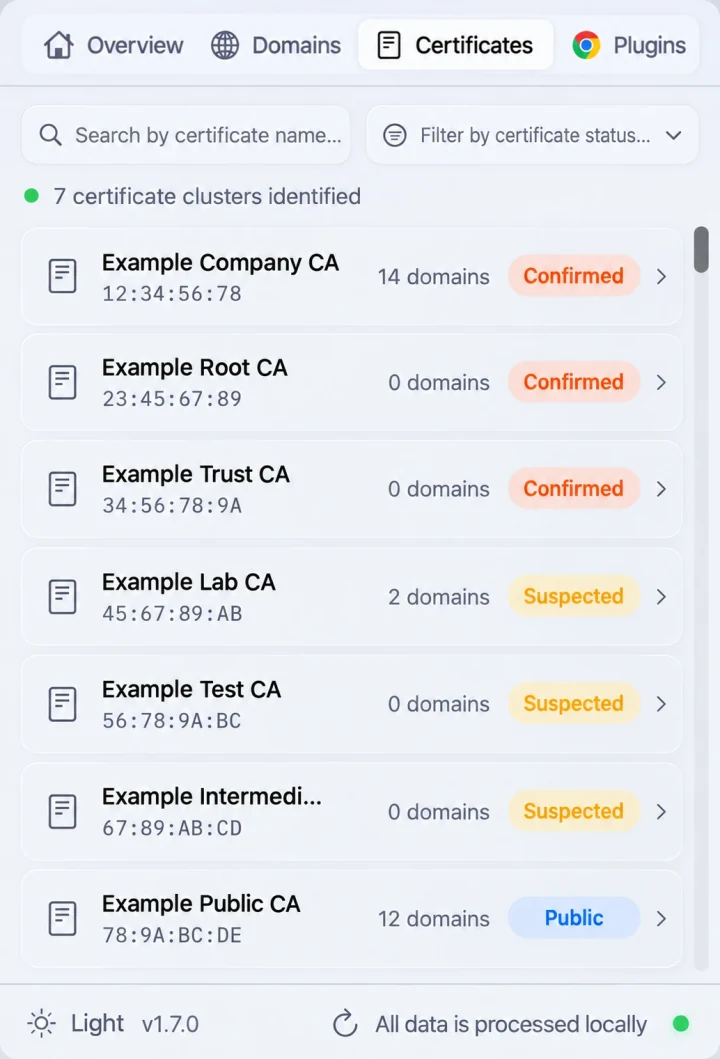
Verify whether an app’s API or update hostname appears under an inspection CA cluster in SWG bar.
Choose the appropriate resolution
- Production / managed corporate workflows: Request a targeted TLS inspection exception (do-not-decrypt rule) from your IT or security administrator for the pinned or mTLS hostname so gateway routing stays intact without breaking TLS pinning. See SWG bypass vs. TLS inspection exception.
- Authorized local testing & development: On networks you administer or are authorized to test, use per-domain SWG bypass from Domains or
swgbar bypass enable <domain>so that specific hostname connects without gateway decryption. - CLI & AI runtime CA store errors: If the failure is not strict pinning, but rather
git,npm,Python,Claude Code, orCursorignoring macOS Keychain, follow Fix SWG TLS & SSL certificate errors in CLI and AI tools on a Mac.