
Enterprise SWG & MDM HTTPS inspection on a Mac
Understand how Zscaler, Netskope, and Cloudflare Gateway inspect HTTPS/SSL on MDM-managed Macs, why browsers show a lock icon, and how to check each domain.
SWG bar · Updated
On a company-managed Mac, web traffic frequently passes through a Secure Web Gateway (SWG)—such as Zscaler, Netskope, or Cloudflare Gateway—to enforce security and access policies. Depending on policy, the gateway may simply forward encrypted connections for one domain while performing full HTTPS/SSL inspection (break-and-inspect) on another.
Because mobile device management (MDM) can install an organization’s root certificate authority (CA) silently into macOS Keychain, Safari and Chrome continue showing a normal lock icon even when TLS is terminated and re-encrypted by the gateway.
Why the browser padlock looks the same
On an unmanaged Mac, if an intermediary replaces a website’s TLS certificate, the browser displays a prominent security warning because the signing CA is unknown. On an MDM-enrolled Mac, IT deploys a trusted root CA profile to the system trust store:
- Your Mac connects to an HTTPS destination through the SWG agent or network tunnel.
- For inspected categories or domains, the SWG decrypts the payload, applies policy checks, and presents a newly generated certificate signed by your company’s root CA.
- macOS evaluates the chain, finds the MDM-trusted root CA in Keychain, and reports a valid connection to the browser.
As a result, looking at the address bar padlock alone cannot tell you whether a domain used the origin’s public certificate or a locally trusted enterprise root.
Three different connection states on a managed Mac
When auditing domains on macOS, separate routing from HTTPS decryption:
| State | Certificate chain observed | Traffic path |
|---|---|---|
| HTTPS / SSL break-and-inspect | Signed by a locally trusted enterprise or inspection root CA rather than a public root CA. | Terminated, decrypted, and re-encrypted by the SWG. |
| Gateway forwarding / TLS exception | Public certificate chain issued by a public CA (such as Let’s Encrypt, DigiCert, or Google Trust Services). | Still traverses the SWG or corporate network, without TLS decryption. |
| Per-domain SWG bypass | Public certificate chain from the destination (when no other intercepting proxy is present). | Selected hostname uses a direct route outside gateway decryption on authorized networks. |
Read SWG bypass vs. TLS inspection exception for a full breakdown of why seeing a public certificate chain alone does not prove traffic bypassed the gateway.
Check which domains your SWG decrypts on macOS
- Install SWG bar on macOS 14 or later (Apple silicon) and open it from the menu bar.
- Check Overview to see the percentage of observed domains classified as
ConfirmedorSuspectedinspection and which root certificates are signing them. - Open Domains to inspect individual hostnames, or install the Chrome companion extension to view recorded domain status in your browser toolbar as you browse.
- Open Certificates (or run
swgbar certificates listvia the CLI) to inspect the issuer, validity window, SHA-256 fingerprint, and full list of observed domains tied to each local root CA.
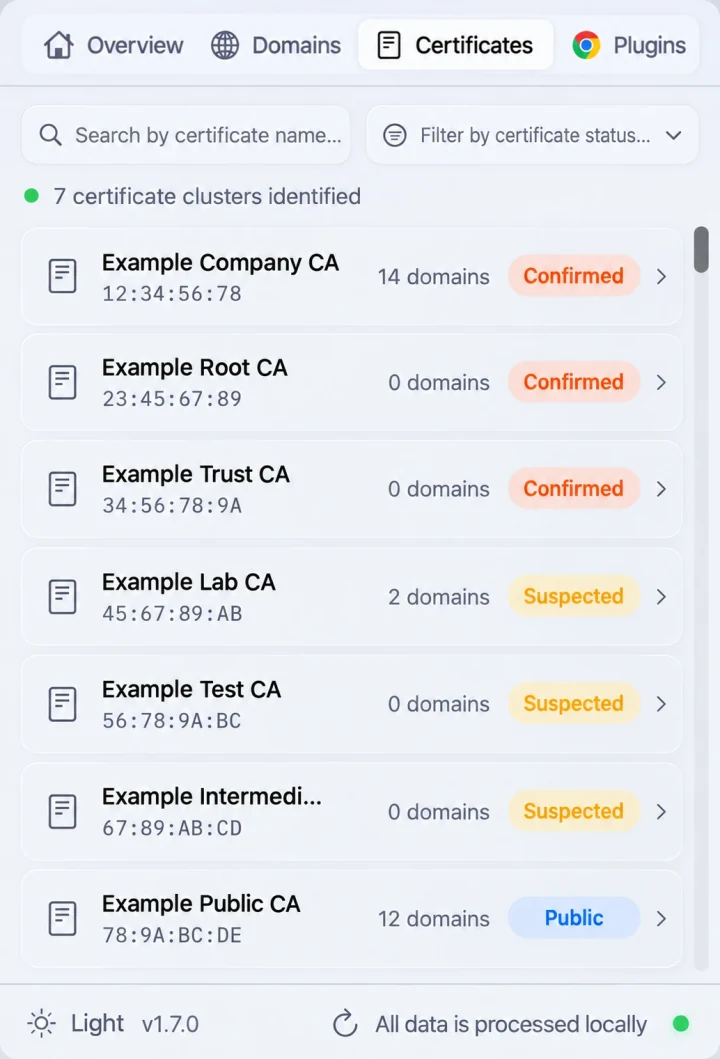
Illustrative preview of the SWG bar Certificates view on macOS.
Common symptoms and next steps
- Browser works, but Terminal or AI tools fail (
CERTIFICATE_VERIFY_FAILED): Tools such asgit,npm,Python,Claude Code, andCursoroften ignore macOS Keychain and reject enterprise-signed certificates. Follow Fix SWG TLS & SSL certificate errors in CLI and AI tools on a Mac. - Need to bypass SWG decryption for a specific hostname: On networks you administer or are authorized to configure, follow How to bypass SWG on a Mac to enable hostname-level bypass from the menu bar, CLI, or MCP.
- Understand verification boundaries: SWG bar evaluates separate IPv4 TCP probes on macOS and stores all detection records locally on your Mac. Read how to detect HTTPS & SSL inspection and how SWG bar works for methodology and scope.