
How to bypass SWG on a Mac
Learn how to bypass SWG for a domain with SWG bar on macOS: enable bypass, allow the network extension, reconnect, and turn bypass off.
SWG bar · Updated
To bypass SWG for a website domain on your Mac, open SWG bar → Domains, open the domain, and choose Enable beside Bypass SWG. Approve the macOS prompts if this is your first use, then reload the website.
This guide covers the controls in SWG bar 2.4.12. SWG means secure web gateway; the steps below apply to the domain you select.
Before you start
You need an Apple silicon Mac running macOS 14 or later, SWG bar installed, and an active trial or license. Follow the installation guide if you have not set up the app yet.
Enable SWG bypass
- Keep SWG bar running and visit the website you want to use.
- Open SWG bar from the menu bar and select Domains. Find the exact hostname and open its details. For example,
app.example.comandlogin.example.comare different hostnames. - In the Bypass SWG row, choose Enable.
- On first use, follow the macOS prompts to allow the SWGBar network extension and its network configuration. If macOS asks for a restart, complete it before continuing.
- Wait for Bypassing, then reload the website so it can establish new connections. Keep SWG bar running while you use bypass.
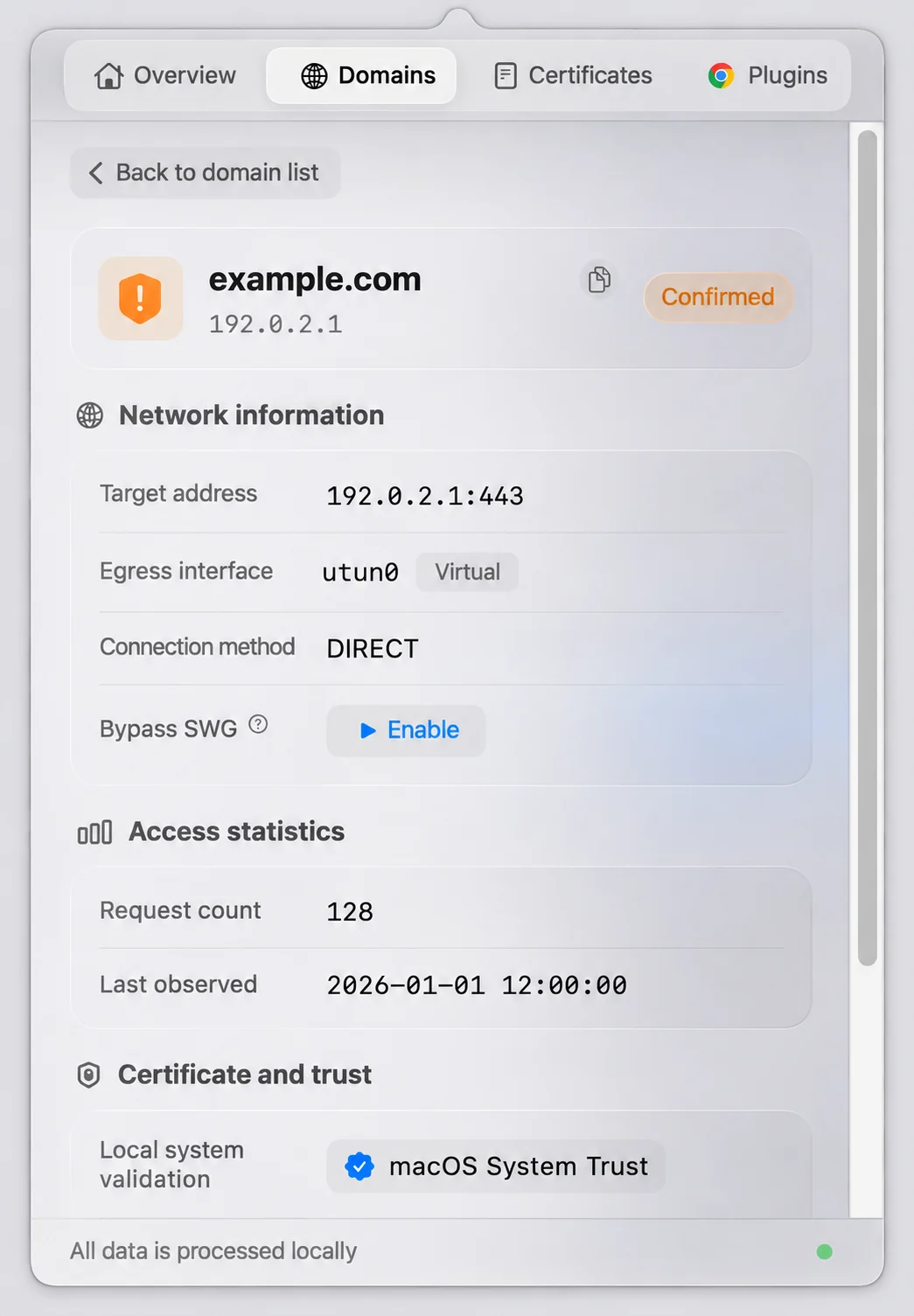
Example interface in English: choose “Enable” in the “Bypass SWG” row. All displayed data is illustrative.
The rule applies to the selected hostname. It does not automatically include every subdomain or every other host used by that website. Existing connections may need to be closed and reopened; if reloading is insufficient, reconnect in the application you are using.
Turn bypass off
Return to the same domain details and click the active control in the Bypass SWG row. Once bypass is disabled, reload the website to establish connections without that rule.
Quitting SWG bar stops active bypass but keeps your saved domain choices. Reopening the app can restore them when your trial or license is valid and the network extension is enabled. To keep a domain off after restarting, disable it explicitly before quitting.
If the app reports an error when disabling bypass, keep it open and resolve the error before assuming the rule has been removed.
Common questions
Why is the bypass control missing?
The control appears for domains identified as inspected, and for domains with a current or previous bypass selection. Open the domain’s details rather than looking for a switch on the overview screen.
Why does it show Recovering or Paused?
These states do not mean bypass is active. Complete any license or macOS approval prompts, keep the app open, and check the error shown beside the control.
Why does part of a website still behave differently?
Sign-in, images, and API requests can use different hostnames. Check which domain you selected and whether another host also needs its own rule. Previously recorded certificate results may remain visible until a new observation is available.
Will this work on every network?
SWG bar 2.4.12 needs an available IPv4 path through a physical network interface. Network restrictions or an application’s own proxy can prevent the intended connection. If a site stops working, disable its bypass rule and reconnect using the normal path.
Can I enable bypass from the Chrome extension?
Use the Mac app to enable or disable bypass. The Chrome companion displays the domain results from SWG bar.
For background, read SWG bypass versus a TLS inspection exception. For command-line controls, see the CLI guide.