
How to Check if Your Employer or Work Mac Is Intercepting HTTPS (SSL Inspection)
Check in seconds whether your company MacBook is decrypting your HTTPS traffic: SWG bar Overview > 0%, Keychain root CAs, MDM profiles, scutil --proxy, and Chrome.
SWG bar · Updated
The fastest way to check whether your employer or work Mac is intercepting your HTTPS traffic is to open SWG bar → Overview (or run swgbar overview) and look at the Domain interception ratio percentage. If it is greater than 0% and lists Confirmed or Suspected domains alongside MITM certificates, your company’s Secure Web Gateway (SWG) is actively decrypting and re-signing HTTPS connections on your Mac—even though Safari and Chrome still show a normal lock icon.
When an employer issues a managed MacBook, IT typically installs a custom Root Certificate Authority (CA) via Mobile Device Management (MDM such as Jamf, Kandji, or Microsoft Intune). Because macOS trusts that root CA automatically, browsers hide the interception unless you inspect the certificate chain or check with a dedicated tool.
Method 1: Instant check across every site with SWG bar (Overview > 0%)
Instead of clicking the padlock icon on one tab at a time, install SWG bar (macOS 14+ on Apple silicon, 14-use-day free trial) and browse normally for a minute:
- Open SWG bar → Overview from your Mac’s menu bar.
- Check Domain interception ratio:
- Above
0%: HTTPS interception is occurring on one or more observed domains. Check the MITM certificates section to see the exact corporate or vendor root CA (such as Zscaler, Netskope, Cloudflare Gateway, Cisco, or your company’s internal CA). 0.0%with onlyPublicdomains: None of the domains observed so far presented a local inspection root.
- Above
- Switch to Domains to see which exact websites are decrypted (
ConfirmedorSuspected) and which ones pass through uninspected (Public trust path—often banking, healthcare, or excluded SaaS domains).
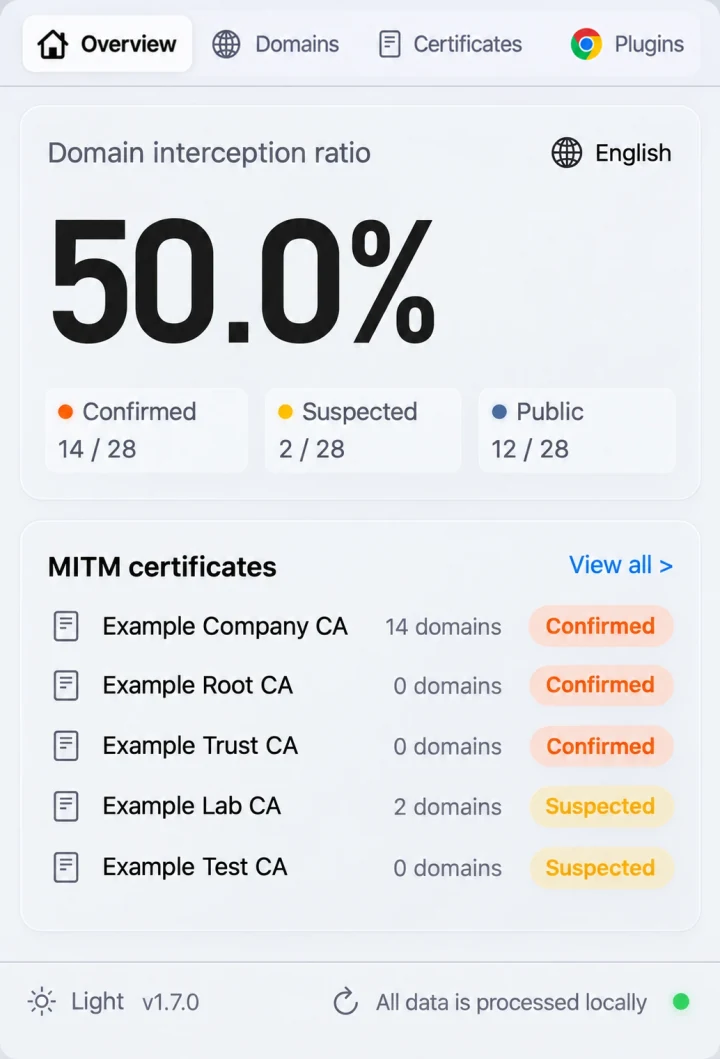
Illustrative Overview view: any Domain interception ratio above 0% shows that observed HTTPS domains on your Mac are being intercepted by a locally trusted root CA.
You can also connect the free SWG bar Chrome extension to see a color-coded interception badge directly in Chrome’s toolbar as you visit websites.
Method 2: Check the certificate issuer manually in Chrome or Safari
To spot-check a single website manually without installing anything:
- Visit a major public site such as
https://www.google.comorhttps://github.com. - Open the site’s certificate details:
- Chrome: Click the tune/site-settings icon to the left of the URL → Connection is secure → Certificate is valid → check Issued By (Common Name / Organization).
- Safari: Click the address bar security icon or choose Safari → Connection Security Details… → Show Certificate.
- Compare the issuer:
- Uninspected: A public CA such as Google Trust Services, DigiCert, Let’s Encrypt, or Cloudflare.
- Intercepted by your employer: Your company name or a gateway vendor such as Zscaler, Netskope, Palo Alto Networks, Cisco, or Cloudflare Gateway.
Note that checking one domain only tells you about that specific hostname—many employers exempt banking or Microsoft 365 domains while decrypting general web browsing, AI tools, and GitHub.
Method 3: Check MDM enrollment, Keychain roots, proxies, and Chrome management in Terminal
Run four read-only commands in Terminal (no administrator password required) to see what your employer has installed on the Mac:
# 1. Check whether the Mac is enrolled in corporate MDM (Jamf, Kandji, Intune)
profiles status -type enrollment

# 2. Check active macOS system proxy and PAC file URLs
scutil --proxy

# 3. Inspect custom trust overrides in macOS Keychain
security dump-trust-settings -d

# 4. Inspect the live TLS certificate issuer presented to Terminal
openssl s_client -connect www.google.com:443 -servername www.google.com </dev/null 2>/dev/null | openssl x509 -noout -issuer -subject
In Chrome, you can also visit chrome://management to check whether your browser is managed by your organization. Note that an empty scutil --proxy output does not guarantee absence of inspection—modern SWGs use macOS NetworkExtension transparent proxies or utun interfaces rather than legacy HTTP proxy settings.
What to do if your work Mac is intercepting HTTPS
- Separate personal accounts from managed devices: On an employer-owned Mac with active SSL inspection, assume decrypted traffic (including URLs, form posts, and uploads on non-excluded domains) can be logged by corporate security appliances.
- Verify per-domain behavior and root CAs: Read Inspect MITM root certificates on macOS and Confirmed vs. Suspected HTTPS inspection to understand exactly which domains are decrypted.
- Fix broken developer tools or bypass authorized domains: If SSL inspection breaks
git,npm,Python,Claude Code, orCursor, see Fix SWG TLS & SSL certificate errors on a Mac or—on networks where you are authorized—follow How to bypass SWG on a Mac.